![Ritter Communications all white (no background).png]](https://help.rittercommunications.com/hs-fs/hubfs/Logos/Ritter%20Communications%20all%20white%20(no%20background).png?height=39&name=Ritter%20Communications%20all%20white%20(no%20background).png)
If you have the Hitron 4582 modem installed in your home, you can get access to the Plume Home app.
-
Download the Plume Home app
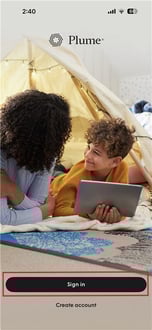
- Open the Plume Home app and select Sign In.
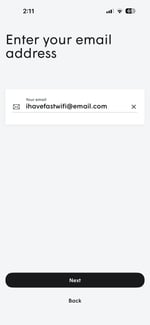
- Enter your email address that is associated with your Ritter Communications account. Then click Next.
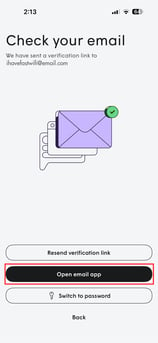
- Click on Open email app or navigate to your preferred email application on your smartphone.
- Locate the email from Plume Support (accounts@account.plume.com) with the subject line: Verify your email account to sign in. Click the Sign In button on your email.
- You may need to check your spam folder.
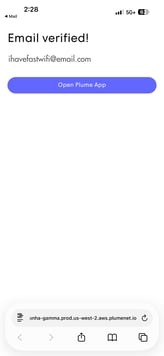
- Once your email is verified, click Open Plume App.
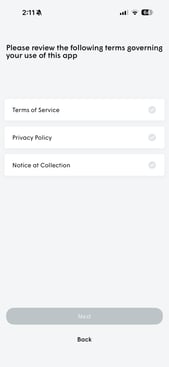
- Agree to the terms shown on your screen, then click Next.
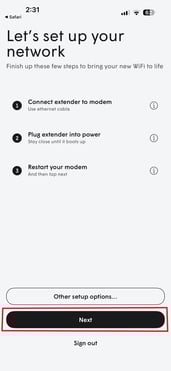
- On the Set Up Your Network screen, click Next.
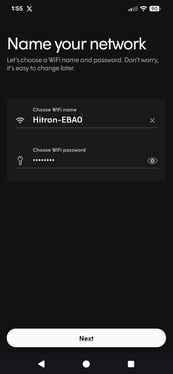
- Your WiFi SSID and password should automatically populate and match what is currently used. Click Next.
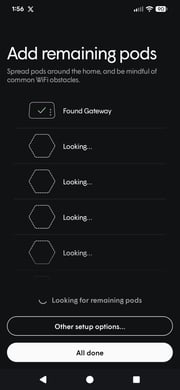
- On the Add Remaining Pods screen, select All done.
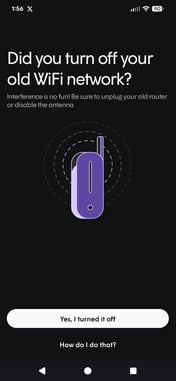
- On the next screen, select Yes, I turned it off.
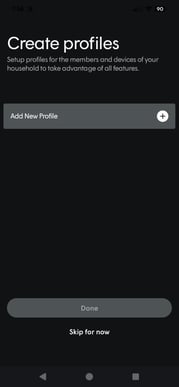
- You can now create a profile for each member of your household. This allows you to assign devices to each user, set up parental controls, view internet usage, and more. To learn more about Profiles, click here.
- If you prefer to create profiles later, click Skip for now.
All done!
For more FAQs about Plume Home, visit our Help Center articles for Smart WiFi.
To learn more about Smart WiFi, visit our Plume Support page.